
Best Times shows every personal best a swimmer has, grouped by event and course. Open Best Times, pick the course, and tap any event to see its progression on the chart. Everything here is free.
What Best Times shows you
Best Times is the home of a swimmer’s records. It lists the fastest time in every event they have swum, split by course, so you always see a true best rather than a mix of pool types.
Tap into an event and the chart plots every swim over time. A line that steps down means the swimmer is getting faster. A flat stretch is normal too, and it tells you where to look next.
Step by step
Open Best Times
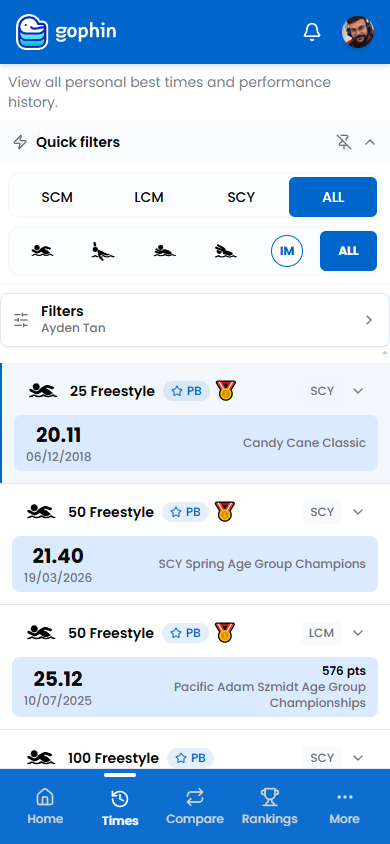
In the menu, go to Times, then Best Times. The screen lists the swimmer’s personal bests.
Choose the course
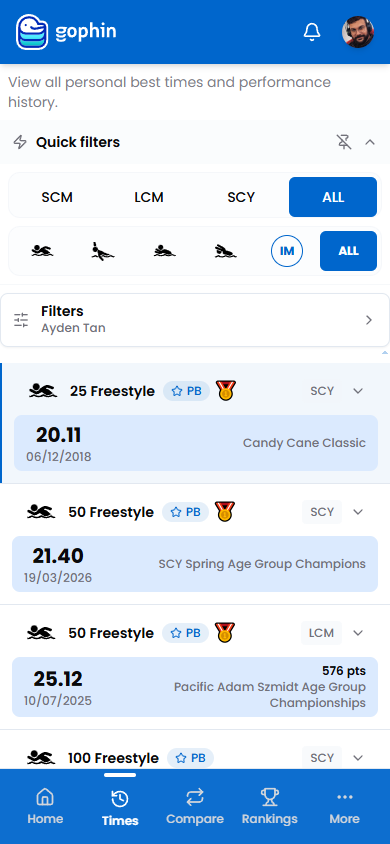
Use the quick filter to switch between SCM, LCM, SCY, or ALL. Each pool type keeps its own bests.
Browse by event
Scroll the list to find an event. Each row shows the stroke and distance, the best time, the date, and the meet.
Open the chart
Tap an event to expand it, then choose Chart to see the progression or Times to see the full history.
Read the progression
Follow the line from left to right. Steps down are improvements. A flat or rising stretch points to a plateau or an off swim, which is useful to spot early.
What's included
What's included
Best Times and the chart are free, forever. When you want to go further, the comparison tools line up a swimmer’s seasons with Compare Seasons, or put two swimmers head to head with Compare Swimmers.
Tips
- Check every course type. A best can hide under SCM, LCM, or SCY.
- Read the chart, not one swim. The trend across many races tells you more.
- A plateau is information. A flat stretch often comes right before the next drop.
- Turn a time into a target. Pair a best with Standards to see how close it is to qualifying.
Common questions
How do I find a swimmer's personal bests in Gophin?
Go to Times, then Best Times. It lists the fastest time in every event the swimmer has swum, split by course. Tap any event to open a chart of every swim over time.
Is Best Times free in Gophin?
Yes, Best Times and the progression chart are free, forever. The comparison tools let you line up a swimmer's seasons or put two swimmers head to head.
Why are SCM, LCM, and SCY bests listed separately?
Each pool type keeps its own bests, so a true best is not mixed across pool types. Use the quick filter to switch between SCM, LCM, SCY, or ALL.